How to Use Spoton: Understanding the Pitch Correction Controls
Spoton is designed to give you control over pitch correction while keeping your workflow simple and intuitive. Whether you’re looking for transparent vocal tuning or a faster, more noticeable correction effect, understanding each control will help you get the sound you’re after.
Here’s a breakdown of the main features and how to use them.
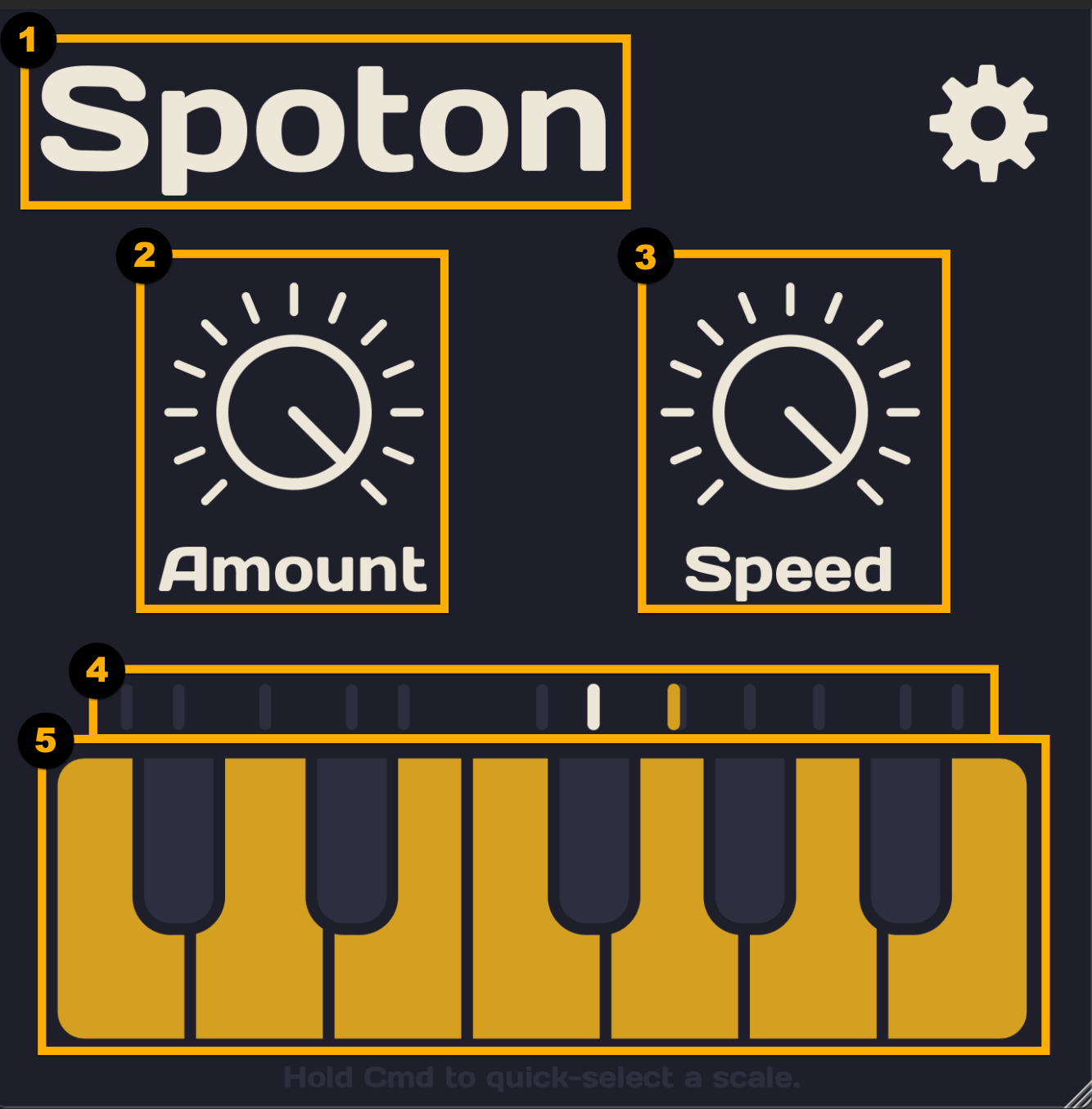
1. Plugin Name: Bypass All Processing
Click the plugin name to bypass all audio processing. This lets you quickly compare the original, unprocessed signal with the corrected output.
Use this feature to evaluate how much pitch correction is affecting your sound and decide whether the result fits your track.
2. Pitch Correction Amount
The Pitch Correction Amount control determines how much correction is applied to the incoming audio signal.
At 0%, no pitch change is applied. Increasing the value introduces progressively more pitch correction, allowing you to adjust the effect to suit your performance and musical style.
For subtle vocal tuning, start with a lower amount. For a more obvious, tightly tuned sound, experiment with higher settings.
3. Correction Speed
The Correction Speed control determines how quickly Spoton reacts to changes in the detected pitch.
- Lower values: Pitch transitions are smoother and more gradual, helping preserve the natural character of the performance.
- Higher values: Pitch corrections happen more quickly, producing a tighter, more immediate tuning effect.
- 100%: Corrections occur almost instantly, creating a more pronounced and precise pitch-correction response.
For natural-sounding vocals, try slower settings first. For modern pop, rap, or other styles that benefit from a tightly tuned sound, increase the speed to achieve a more immediate response.
4. Pitch Visualizer: Detected vs. Corrected Pitch
The built-in visualizer helps you monitor the relationship between the incoming pitch and the corrected output in real time.
It displays two moving vertical lines:
- White line: Represents the detected pitch of the input signal before correction.
- Yellow line: Represents the pitch of the corrected output signal.
Watching these lines helps you understand how Spoton responds to the incoming performance and how the pitch correction changes the result.
This visual feedback is useful when adjusting the correction amount and speed to find the right balance between natural expression and precise tuning.
5. Pitch Correction Target Notes
The Target Notes section lets you choose which musical notes Spoton uses when correcting the incoming pitch.
You can select any of the 12 musical notes to define the set of notes allowed by the correction process. Choosing the appropriate notes helps keep the corrected performance aligned with your song’s musical structure.
Quick-Select a Scale
To select a scale quickly, hold down:
- Ctrl on Windows
- Cmd (⌘) on macOS
This shortcut makes it easier to configure Spoton for your track without manually selecting each note.
For the best results, choose a scale that matches the key of your instrumental. If your track uses a specific or unusual set of notes, you can customize the target notes to fit your composition.
Final Thoughts
Spoton gives you straightforward control over five essential aspects of pitch correction: bypassing the effect, setting the correction amount, adjusting the response speed, monitoring detected and corrected pitch, and choosing the target notes.
Start with subtle settings, listen carefully to the results, and adjust the controls to match your production style. Whether you’re working on rap vocals, melodic performances, or other pitched audio, understanding these features will help you get more out of Spoton.
Explore the controls, experiment with different settings, and find the pitch-correction sound that works best for your music.