


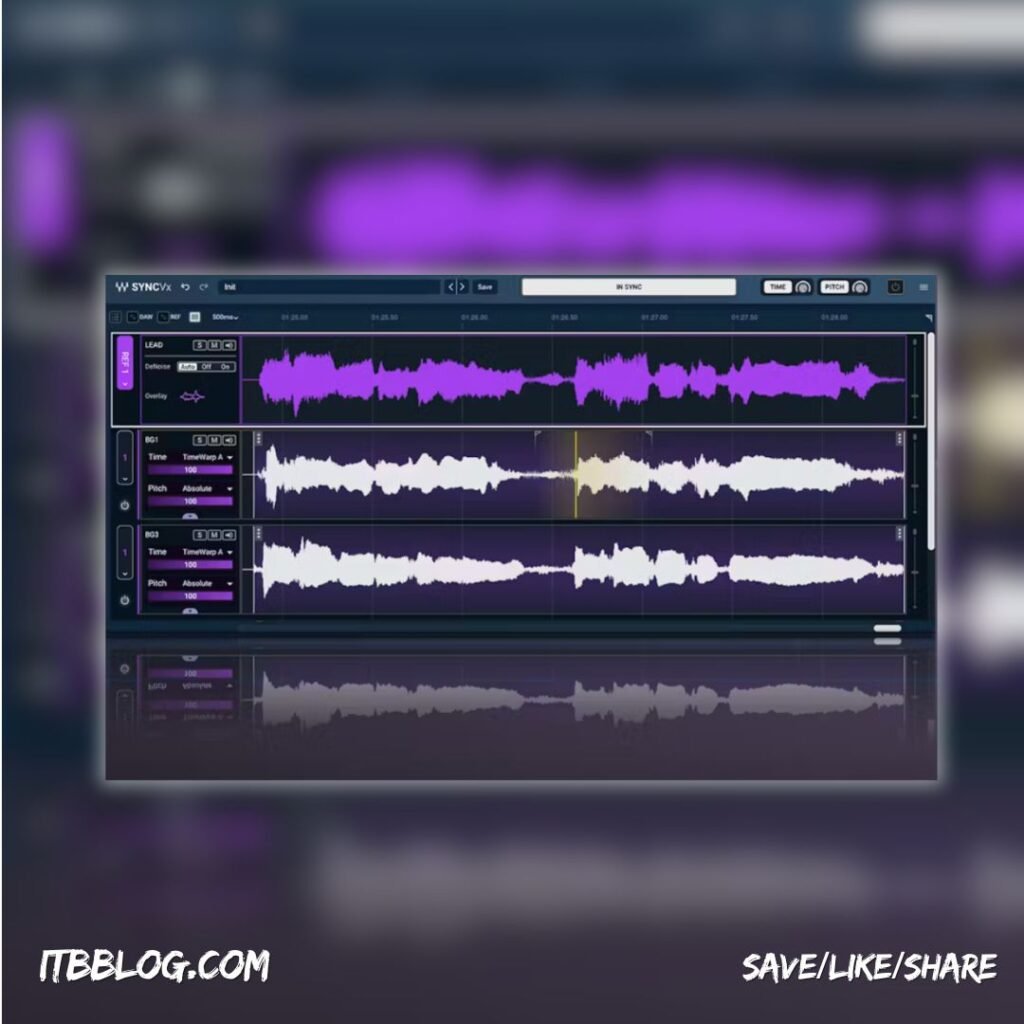
Every music producer and post-production engineer knows the frustration of manually aligning vocal tracks. Whether it’s syncing backing vocals with the lead in a song or aligning re-recorded dialogue to the original performance, the process is time-consuming and tedious. A single misalignment can be the difference between a polished, professional sound and an amateur production.
Enter Sync Vx, a game-changing plugin that automatically locks the time and pitch of multiple vocal tracks to your lead performance. Whether you’re working on music or post-production, Sync Vx allows you to effortlessly bring out the emotion in your tracks, keeping your vocals in perfect sync.
Why Sync Vx is a Game-Changer
Sync Vx is built to save you time and energy, eliminating the need for hours of manual vocal editing. Here’s how it transforms your workflow:
- Lock Your Vocals into the Groove – Fast: Sync all your vocals (backing, doubles, choirs) with your lead track in just seconds. This allows your vocals to feel cohesive, tight, and professional—without the hassle.
- Save Your Vocalist: Did your singer miss the perfect phrasing? With Sync Vx, you can record your own reference vocals and use them to nudge the singer’s timing and pitch into place, creating a seamless vocal performance.
- Spend Your Time Creatively, Not Tediously: Say goodbye to manual editing. With Sync Vx, you can focus on the creative aspects of your production, like arranging harmonies or adding effects, instead of worrying about alignment.
- All Your Vocals in One Window: Sync Vx allows you to manage your entire vocal arrangement in one neat, easy-to-use window. View and edit all your backing vocals, doubles, and choir parts at once for maximum control.
- Customized Control: Sync Vx offers customizable shortcuts, a resizable GUI, and normalized waveforms, giving you full control over your workflow and vocal editing process. The intuitive interface makes it easy to navigate and adjust vocals precisely to your liking.
Step-by-Step Tutorial: Basic Usage of Sync Vx
Here’s a quick guide to get you started with Sync Vx and maximize its capabilities in your vocal editing process:
Step 1: Install the Plugin
Download and install Sync Vx into your DAW (Logic Pro, Ableton, FL Studio, etc.). Once installed, open your session and add the Sync Vx plugin to your vocal tracks.
If you already have a subscription plan with Waves, open Waves Central and install the plugin from there.
To use it on Logic, you need to use the ARA version and run Logic in Rosetta mode.
Step 2: Import Your Vocal Tracks
Load your lead vocal track and all your backing vocals (doubles, harmonies, choirs) into the session. Ensure that all vocal tracks are clearly labeled and placed in your DAW’s timeline.
Step 3: Assign a Reference Track
Select your lead vocal (or any reference track) as the source for syncing. You can also use a pre-recorded reference vocal that you’ve created to align other vocals in your arrangement.
Step 4: Activate Sync
With the reference track assigned, enable Sync Vx to automatically align the timing and pitch of all your backing vocals to the lead. The plugin will analyze each track and adjust them for perfect synchronization.
Step 5: Fine-Tune the Alignment
Once Sync Vx has aligned your vocals, you can fine-tune the timing and pitch adjustments. The plugin offers options for:
- Time adjustments: Shift the timing of your vocals to match the lead precisely.
- Pitch correction: Make subtle pitch adjustments to ensure the vocals blend perfectly with the lead.
- Transposition and formant manipulation: Get creative with the tonal quality and pitch of your vocals.
Step 6: View All Your Vocals in One Window
Take advantage of Sync Vx’s clean, intuitive interface. View and edit all your vocal tracks in one window for faster, more organized workflow. Adjust any last-minute details to perfect your arrangement.
Step 7: Final Adjustments and Export
Once you’re happy with the sync and the vocal performance, export your tracks and proceed with the rest of your production process

WorkFlow :
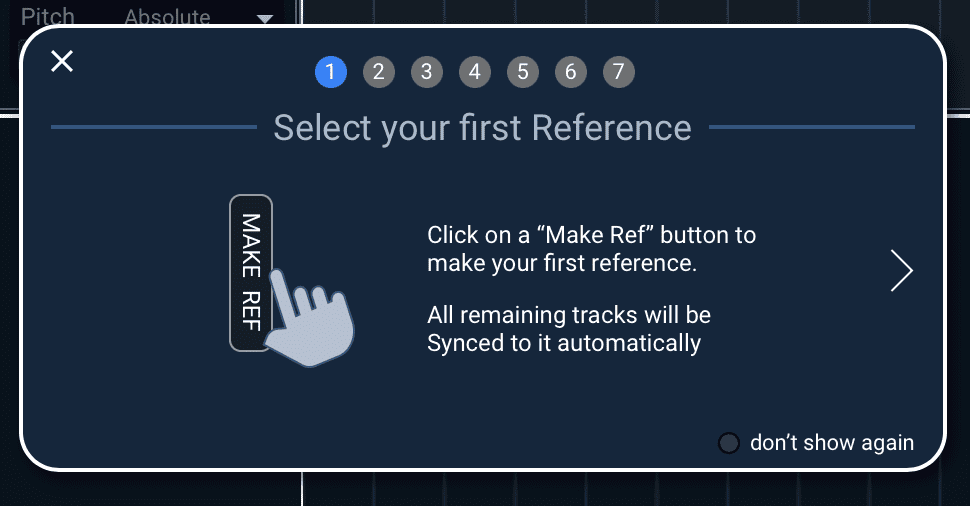
Create a Reference
- Click “Make Ref” to set the first reference.
- All other tracks will automatically sync to the reference.

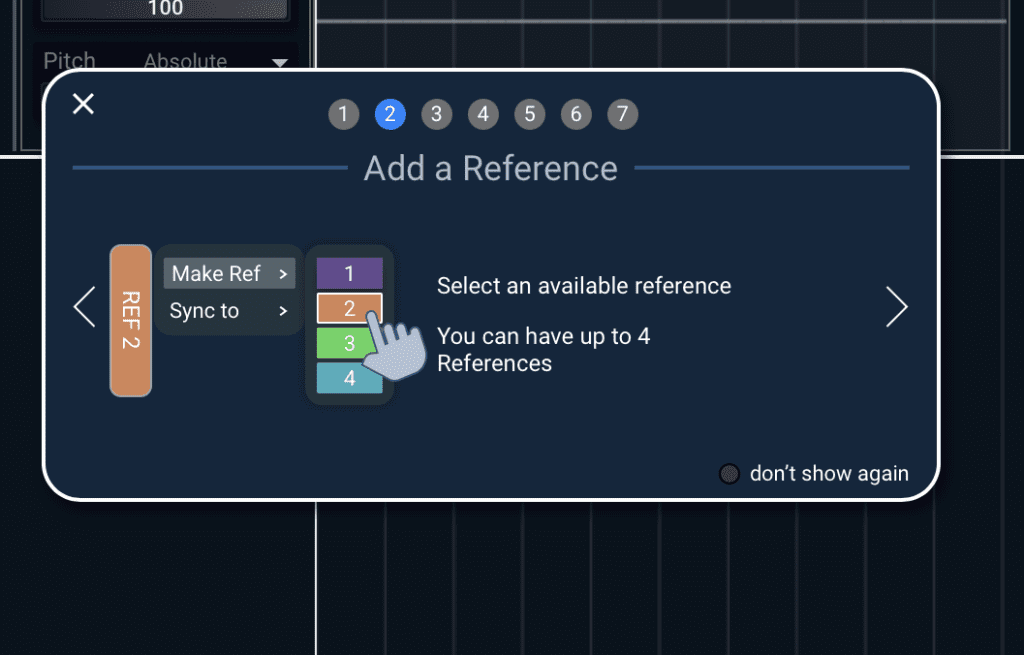
Manage References
- You can have up to 4 available references.
- Select a reference from the list or click the arrow to change the assignment of a Sync track.
- Choose “None” to exclude a track from syncing.

Editing on Reference
- Select a part of the reference track by clicking and dragging horizontally.
- Press ‘i’ to ignore a selected section (equivalent to deleting it in the DAW). You can modify this shortcut in the settings.
- Press ‘b’ to bypass a section, leaving it unsynced. You can customize this shortcut in the settings.
Bypass a Section


Selection on Sync Tracks
- Select a part of a Sync track by clicking and dragging horizontally.
- To manually adjust sync, position the playhead and press ‘M’ to create a SyncMarker. Moving it will move the waveform.

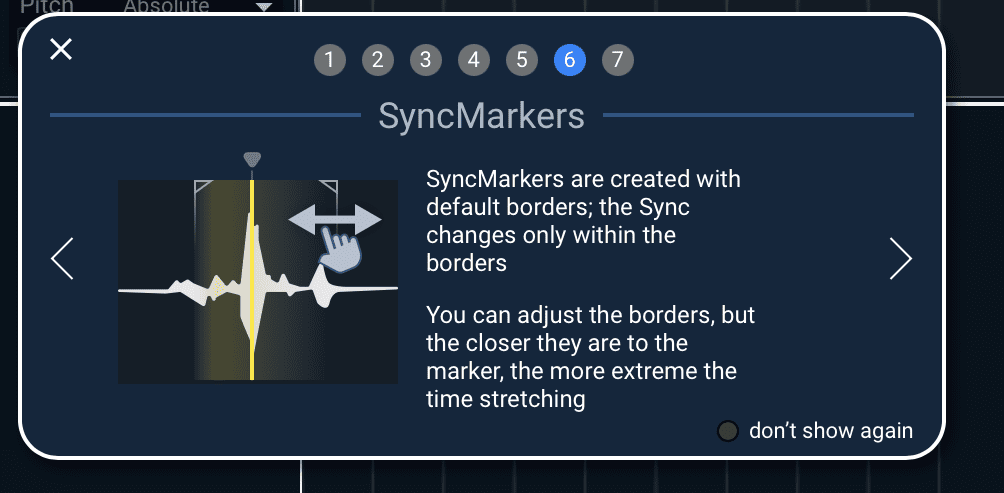
Borders and Stretching
- SyncMarkers have default borders: changes happen only within these borders.
- Moving the borders closer to the marker increases time stretching.
Zoom
- Use R/T or click and drag on the workspace or time bar to zoom.
- Customize shortcuts in the settings.


Sync Vx: Take Control of Your Vocal Workflow
Very simply, you need to load the plugin onto the vocal tracks you want to sync, and it will automatically sync them. You should place the plugin in the first insert of the track, press sync, and you’re done.
With Sync Vx, vocal alignment is simpler, faster, and more accurate than ever before. By automating the tedious task of syncing vocals, you can spend more time focusing on the creative aspects of your music or dialogue editing. Whether you’re a music producer aiming for tight, professional-sounding vocals or a post-production engineer syncing ADR, Sync Vx is the tool you need to elevate your workflow.
Key Features at a Glance:
- Automatic time and pitch alignment for backing vocals, doubles, and choirs.
- Quick and easy vocal editing with all tracks displayed in a single window.
- Customizable shortcuts and resizable GUI for maximum control.
- Transposition, formant manipulation, and fine-tuning for creative flexibility.
Don’t waste time on tedious edits—get Sync Vx today and streamline your vocal production for professional results in a fraction of the time!